Session Scheduling
Last updated May 31, 2026
Creating a Session Proposal
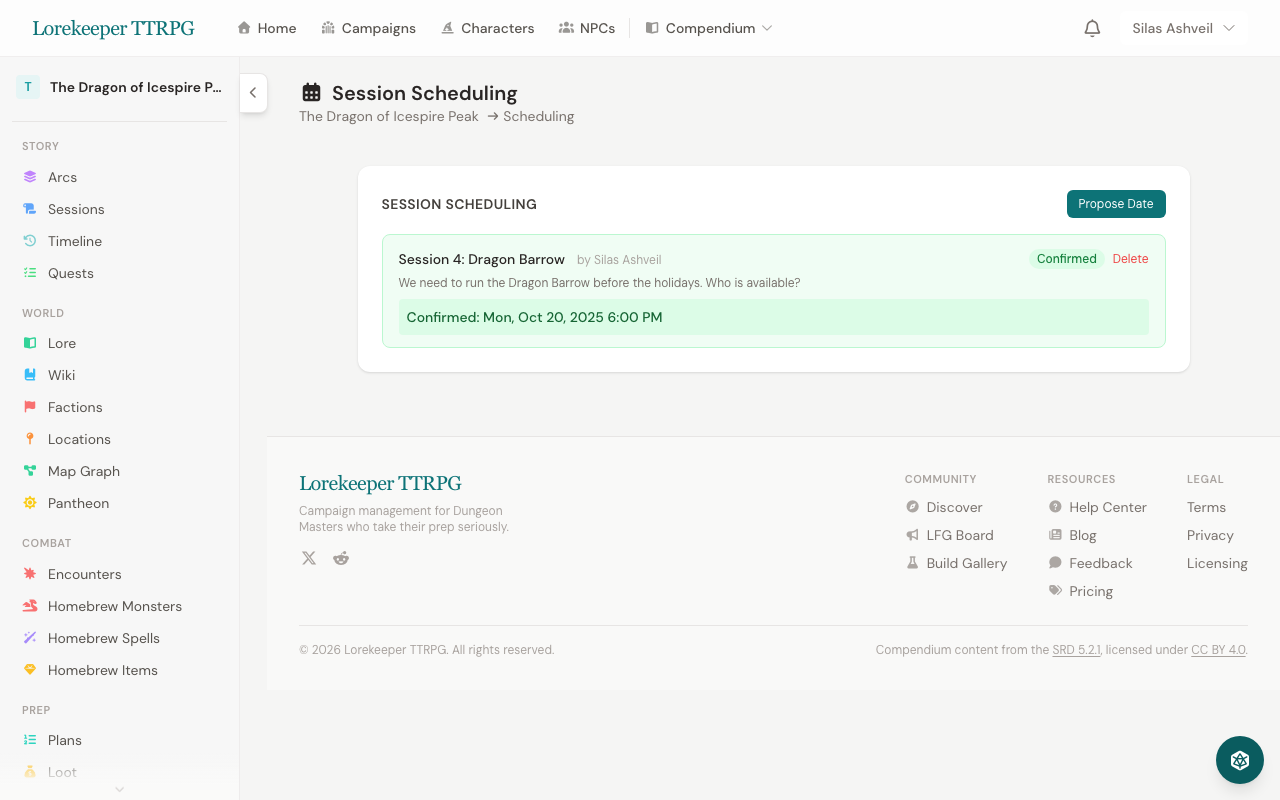
- Go to your campaign → Scheduling
- Click New Proposal
- Add one or more proposed dates for the session
- Share the link with your players
How Players Respond
Players see the proposed dates and can mark each one as:
- Available — they can make it
- Maybe — they might be able to attend
- Unavailable — they can't make it
Responses update in real time so you can see availability at a glance.
Confirming a Date
Once enough players have responded:
- Review the responses on the proposal page
- Click Confirm on the date that works best
- The confirmed date is highlighted and players are notified
Managing Proposals
- Close a proposal when you've made your decision
- Delete proposals you no longer need
- Add or remove proposed dates after creation
Session Reminders
Once a session date is confirmed, Dungeon Manager can send automated reminders:
- Reminders are sent 24 hours before the scheduled session time
- Both email and in-app notifications are delivered
- Reminders include:
- The campaign name and scheduled date/time
- A summary of the previous session (so everyone remembers where you left off)
- An optional custom message from the DM
- Reminders go to the DM and all accepted players in the campaign
- Players can control notification preferences in their Account Settings
Sending a Manual Reminder
You can also send reminders manually:
- Go to your campaign → Scheduling
- Click Send Reminder on a confirmed proposal
- Optionally add a custom message
- Click Send — all players receive the notification immediately
Was this article helpful?
Thanks for the feedback!