Managing Sessions & Wrap-Up
Last updated Aug 10, 2026
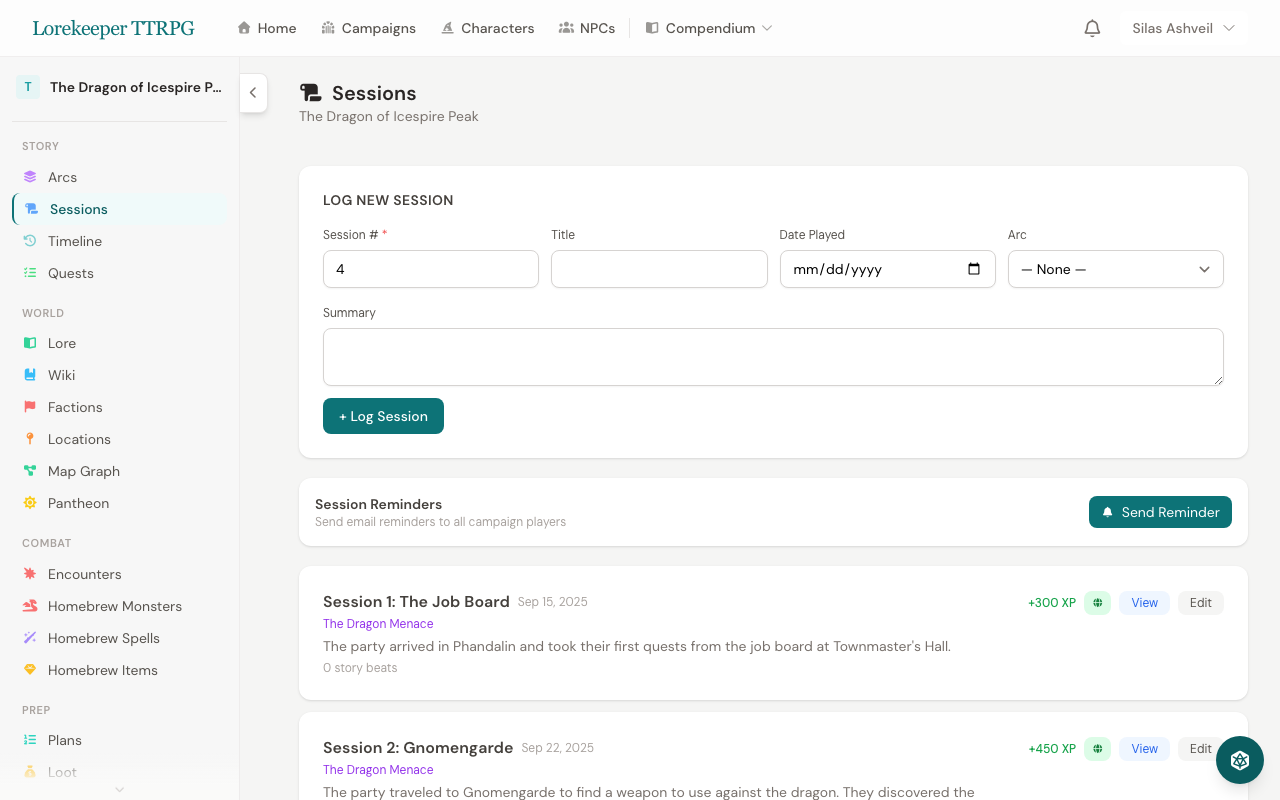 The Sessions page — log new sessions, run wrap-ups, and browse past entries.
Logging & Planning Sessions
- Go to your campaign → Sessions and click New Session.
- Set the session number, title, date, and optional story arc.
- Use the Session Planner to structure prep by linking encounters, NPCs, locations, and checklist items.
Session Wrap-Up Wizard & Automated Recaps
When a session concludes, click Session Wrap-Up to launch the structured post-session wizard:
- Attendance & XP — Check off attending characters and assign session XP.
- Party Loot — Log items and gold acquired during the session for players to claim.
- Story Beats — Add key narrative moments and discoveries.
- Automated Recap — The
SessionRecapServiceformats your notes and beats into a structured recap. - Timeline Sync — Check Add to Timeline to automatically publish the wrap-up event to the Campaign Timeline.
Session Scheduling & Date Proposals
Use the Doodle-style scheduler under Scheduling:
- Propose multiple date/time options.
- Players vote with their availability: Available, Maybe, or Unavailable.
- DMs pick the confirmed date, which syncs to the session record.
Sharing Session Recaps
Recaps can be shared in multiple ways:
- Public Share Link — Generate a unique URL (
/recap/{token}) accessible to anyone. - Discord Integration — Click Share to Discord to post a rich embed with story beats and voting buttons directly to your channel.
Players are automatically notified when a new recap is published.
Was this article helpful?
Thanks for the feedback!